Cintia is an AI agent built on Gemini that learns about your business to suggest and respond to reviews just the way you would.
Unlike typical AI review-response tools, which return an answer to a prompt with certain instructions, Cintia is an assistant that understands, learns, and decides.
The best way to think about it is that Cintia is an employee, not a robot. It doesn’t run on rules — it needs training, learning, corrections, and examples. It needs you to explain “how we do things here.”
Cintia decides what to prioritize when generating a response to each review. If you’ve just started with Cinquo, she can only learn from your past responses — so if Cintia’s replies sound like “ChatGPT,” it’s probably because she’s imitating the tone you’d been using.
What Cintia learns from
Cintia has 5 ways of learning what you expect from her:
- Your past replies — what you’ve already published on Google.
- Your custom instructions — what you tell her explicitly.
- Your corrections — when you edit her suggestion.
- Your templates — model replies you create as references.
- The documents you upload — your letter, your menu.
| Tip: When Cintia suggests a reply, you’ll see her reasoning underneath, in English:  That line tells you what type of learning she used to produce the reply. It’s your tell for knowing where you need to reinforce the training if the reply isn’t what you expected. |
Let’s look at how to train your new employee.
The order that works to customize your replues
- Create at least 2-3 positive templates and 2-3 negative ones with a distinctive tone.
- Write the general instructions: context, voice, list of off-limits phrases (only if you spot things to improve).
- Add instructions by rating/stars (start with the negative ones).
- Add “don’t use replies before [date] as a reference” if you’re carrying an old tone you don’t want influencing the learning.
- Set a default language.
- [Upload your letter or menu]
- Customize the locations that need it and have a different tone.
- Adjust your customization at the level of each delegated user.
- Turn on automatic suggestions.
- Correct by hand for a few weeks.
- Automate and monitor.
Step 1. Start with the templates
This is the starting point, not an extra.
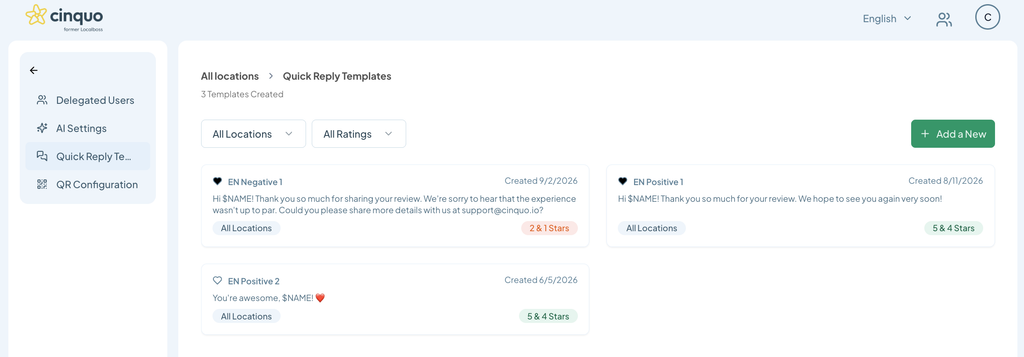
Create at least 2 or 3 templates for positive reviews and 2 or 3 for negative ones, with a strongly defined tone. They don’t need to be perfect, and you don’t need to apply them manually when replying: once they’re created, Cintia starts using them as a reference for new incoming reviews.
Two things worth knowing:
- She doesn’t copy-paste them. You’ll see the template adapted to the content of the review so it doesn’t sound repetitive or like a “copy-paste.”
- It’s not retroactive on its own. If you create them today, you’ll need to regenerate the old suggestions for them to feed into the training.
The more distinctive your templates’ tone, the better. In other words, if the template is “Thanks $NAME for your review!”, Cintia doesn’t have much to learn about your tone from that — but if the template is “Wow $NAME, we love that you took the time to share your experience with us. You’ve earned today’s Karma award,” what Cintia can understand about your tone is completely different.
Step 2. Write your custom instructions
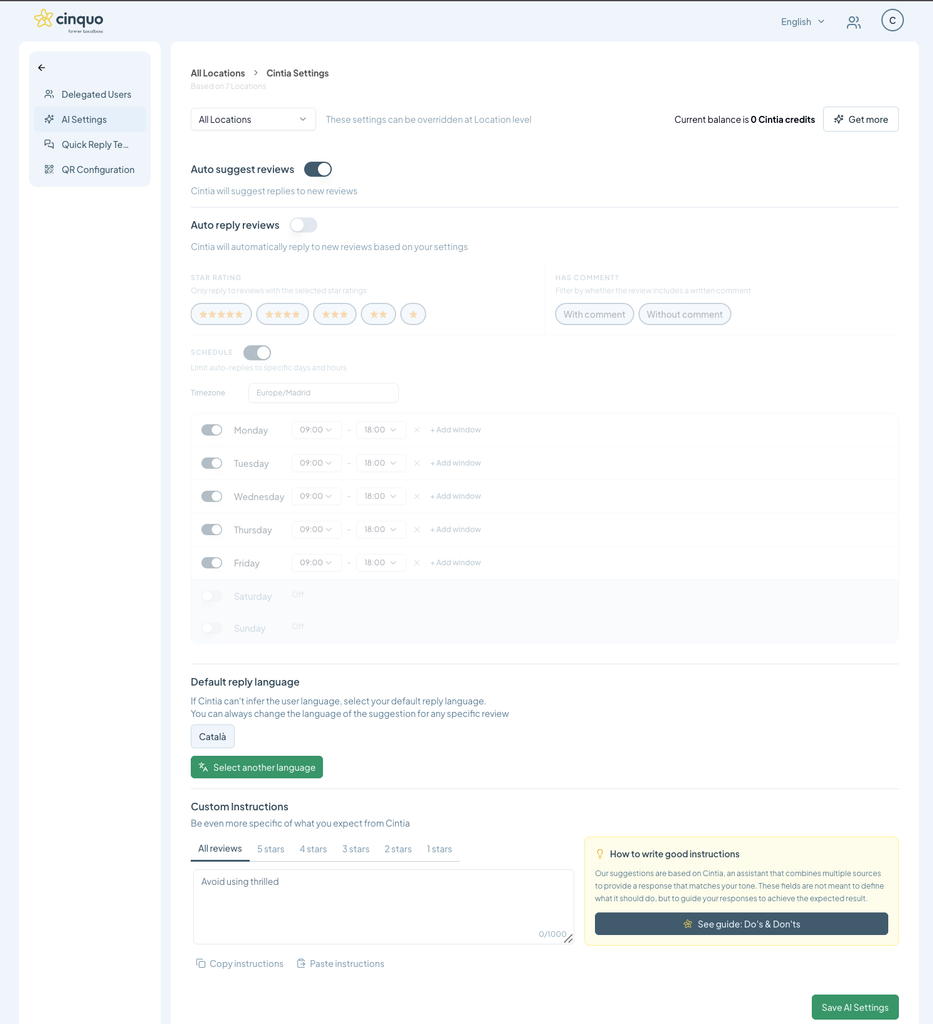
This is where the personality really gets defined. General instructions apply to all reviews, regardless of rating.
What works:
- Voice and tone, with examples. “Friendly tone” isn’t enough on its own. Better: “Warm and friendly tone, but without overdoing familiarity: no pet names, no overly casual address.”
“On a scale of 1 to 5 for warmth, I want you at a 4“
- What’s off-limits. This is the part that pays off the most. A literal list of phrases you never want to see again: “Don’t start with ‘what a joy’ or ‘we’re thrilled,'” “no ‘the X team,'” “no superlatives.”
- Closing line. Specify how you want to sign off to the customer.
Cintia already has all the context about your business. These are small fine-tunings that add up.
Step 3. Fine-tune by star rating
Beyond the general instructions, you can write specific instructions for each rating: 1, 2, 3, 4, and 5 stars. These override the general ones for more specificity.
This is where the improvement shows up fastest, because a 1-star review and a 5-star review shouldn’t be answered anywhere near the same way:
- 5 stars: thank without overdoing it, reference something specific from what they said, close.
- 4 stars: same as above, plus an invitation to come back and see if you can earn that 5th star.
- 3 or below: apologize for the experience without being overly dramatic, don’t automatically concede the point, politely ask for more information (which day, which table, which dish) or move the conversation to a private channel.
Step 4. Control which replies she learns from
This is the setting almost nobody uses, and it solves a very specific problem.
Cintia learns from your past replies. Great — unless those past replies were written by an agency that no longer works with you, or by you six months ago in a different tone. In that case, she’s copying a style you no longer want.
The fix is one line in your custom instructions:
“Don’t use reviews before [date] as a reference“
Set the date to when you changed tone, team, or manager — or today. From that point on, Cintia relies only on what you’ve done since then.
This is especially useful when you notice Cintia is “too enthusiastic” or keeps repeating phrases you no longer use: it’s almost always because she’s inheriting them from old replies, not from your instructions.
Step 5. Set the language
You can set the default reply language for when Cintia can’t detect one (mainly reviews with no comment).
If the review is in another language, the suggested or automatic reply will be in that language too.
Step 6. Upload your menu (if you’re a restaurant)
In settings you can attach documents to give Cintia context. The most obvious case in hospitality is the menu: with the menu uploaded, when someone mentions a dish by name, Cintia knows what they’re talking about instead of guessing.
Important: if your category isn’t Restaurant, this option isn’t available to you.
Step 7. Location-level instructions (if you manage more than one location)
If you manage more than one location, you can configure Cintia at the account level (all locations) and at the location level (just one).
The logic works like classic inheritance, and it’s worth understanding well:
- If you’ve never touched a location’s settings, that location inherits whatever you set at the general level.
- If you’ve created specific settings for a location, that location becomes unlinked.
Put in real terms: if you have 50 locations and have customized just 1, changing something at the general level applies it to the other 49. The customized one stays as it was.
The same applies to automatic replies: turning them on “for everyone” doesn’t activate them for locations that have their own settings.
Step 8. Different instructions for delegated users (if you have them)
If you have managers with delegated access and permission to reply, you can create instructions that differ from yours. A real example configuration:
- Main user: “In the greeting just say Hi, don’t mention the customer’s name.”
- Delegated user: “In the greeting include the customer’s name and a smiley emoji.”
This lets your team’s responses sound different from leadership’s when they’re the ones replying, or lets a location keep a more casual tone than the brand overall, for example.
Step 9. Turn on automatic suggestions
Up to this point you’ve been configuring. This step is the one that actually saves you time.
With automatic suggestions turned on, Cintia prepares the reply before you even open the review. Every new review that comes in already has a proposed reply waiting for you in the list: you open it, read it, publish it, or edit it.
Two things to note:
- She only generates suggestions for reviews that come in from the moment you turn it on.
- Every suggestion uses up Cintia credits. If you handle a high volume, check your balance before turning this on.
When a review is too sensitive for an automatic reply — serious accusations, staff-related issues, formal complaints — Cintia flags it as “Requires Human Intervention” and leaves it for you. She won’t make up a reply just to get it done, and you can quickly filter these to handle them as a priority.
Step 10. Correct her during the first few weeks
This is the part people skip.
Cintia needs training. During the first few weeks, correct the tone on every suggestion before publishing it. Every correction you publish becomes learning material. That’s how you teach her.
The classic mistake: publishing a reply you don’t really like because you’re in a hurry. Cintia assumes that’s the right kind of reply and goes on to produce more like it. If a suggestion doesn’t convince you, we recommend editing or regenerating it rather than publishing it as-is.
Sign that you’re on track: when the reasoning behind suggestions starts saying “based on custom instructions and past replies” instead of just “based on past replies.”
Step 11. Once it’s dialed in, automate
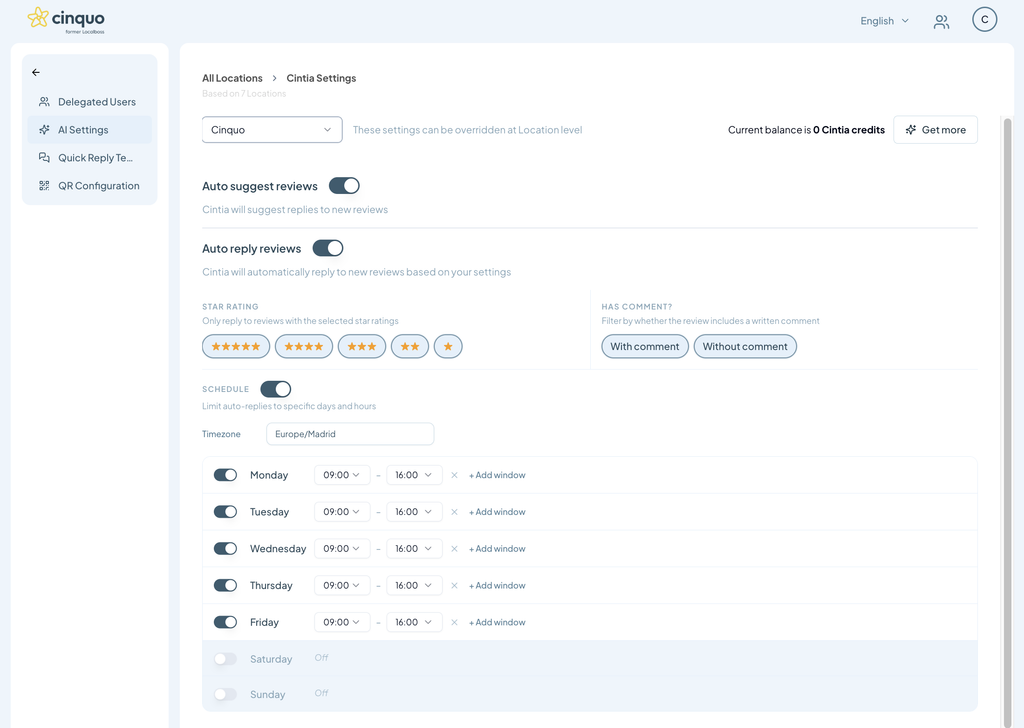
Once you’ve spent a few weeks and the suggestions come out publish-ready without edits, it’s time for the last step: Cinquo lets you turn on automatic replies based on Cintia’s suggestions.
You no longer review and publish — replies go out on their own, and you monitor. You can choose which ratings get automatic replies and schedule a time window and time zone so replies match the business’s opening hours.
Don’t turn this on day one. The order that works is: templates → instructions → a few weeks of manual training → automation.
Here’s another article that explains how it works:
👉 How to automate replies to your reviews with Cinquo
A few minutes of setup and a few weeks of correcting. In exchange: every review answered daily, in your voice, without depending on whether you have a free afternoon.
Want us to take a look at your setup? Reach out and we’ll review it with you.

